
Mythbusters: Is Google Drive Secure?
October 13, 2026Google Drive is well-known for being a convenient workspace. Used by over one billion users, it has revolutionised the way people work every day. Businesses can store documents, collaborate in real time and access important information from almost anywhere. Yet, as with everything that’s accessible online, it begs the question: Is Google Drive secure?
The simple answer is yes. Google Drive provides a secure environment for storing and sharing business files. Data is encrypted, access can be carefully controlled, and Google Workspace administrators have tools to protect sensitive information. However, keeping Google Drive secure doesn’t depend on Google alone. Businesses also need to configure the platform correctly, manage who can access information and train employees to share files safely.
Is Google Drive Secure?
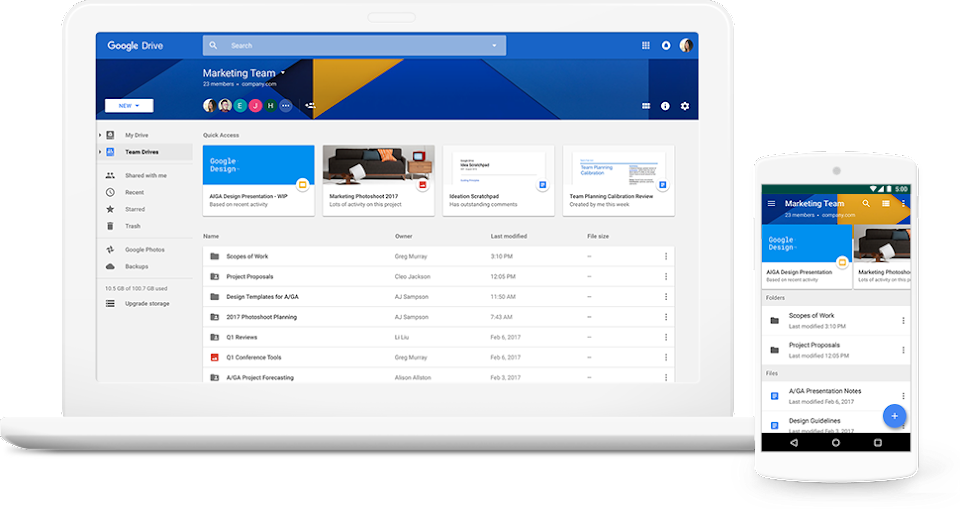
Now that more businesses are using Google Workspace, this raises more questions around Google Drive’s security. In short, the answer is yes, Google Drive is very safe.
Files uploaded to Drive are stored within Google’s data centres and protected by security measures designed to detect and block threats such as phishing, spam and malware. Google also encrypts files during transfer and storage, and all files uploaded to Drive, as well as content created in Docs, Sheets and Slides, are protected using AES256 bit encryption. This ensures your information remains secure as it moves between your computer and Google Drive.
Encryption protects the underlying data, but it doesn’t eliminate every risk. A file could still be exposed if it’s shared with the wrong person, accessed through a compromised account or downloaded to an unsecured device. This means the most accurate answer is that Google Drive is secure when the built-in protections are supported by sensible account management.
How Does Google Drive Protect Business Data?
Google Drive security is based on several layers of protection rather than one individual feature.
Encryption
Encryption converts information into a protected format so that it can’t be understood without the appropriate access or encryption key. All standard Drive files are encrypted in transit and at rest. Some Google Workspace plans also support client-side encryption. This gives organisations additional control over encryption keys and can be valuable for those with particularly strict confidentiality or regulatory requirements.
Controlled File Sharing
While Google Drive makes it easy to share your information with others, you need to consider who you share your files with. Drive allows users to decide who can open a file and what they can do with it. Depending on the settings, access can be restricted to named individuals or specific groups. Users can typically be given one of three common permission levels:
- Viewers can open and read the file
- Commenters can view the content and leave comments
- Editors can make changes and might have broader sharing abilities
File owners, Shared Drive managers and administrators can also apply restrictions that prevent collaborators from downloading, copying, printing or changing access in certain situations.
Shared Drives
For businesses, it’s highly recommended that you use Google Shared Drives. These are particularly useful as the files belong to the organisation or team rather than an individual employee. So, when someone leaves, any files stored in a Shared Drive remain available to the rest of the team. This can reduce the risk of losing access to documents or having important information stuck in a former employee’s account.
Shared Drives can also make it easier to apply consistent access levels, organise departmental information and control external collaboration. When best practices are followed, it’s easy to store and share content responsibly.
Administrative Security Controls
Google Workspace admins can manage security across the whole organisation rather than relying on every user to make the right decision. There are a huge number of tools that provide an additional layer of security. Depending on the Google Workspace plan, these can include:
- Device and endpoint management
- Context-Aware Access
- Data Loss Prevention (DLP)
- Drive sharing restrictions
- Audit logs and security alerts
- Google Vault for retention and eDiscovery
Advanced security features aren’t included with every Workspace plan, so it’s important to consider this when choosing between Standard, Plus and Enterprise plans.
What Are the Main Google Drive Security Risks?
The most common Google Drive security risks are usually connected to access, configuration, and human error rather than to weaknesses in Google’s underlying cloud infrastructure.
Incorrect Sharing Permissions
For example, you might share a file via a link with a group of people or a person that you didn’t intend to. You might elect a broader sharing option than necessary, or grant someone editing access when viewing access would be enough. Permissions can also become difficult to manage when folders have been shared with several employees and external users over time.
Compromised Accounts
A strong cloud platform can’t fully protect information if an attacker accesses a user’s legitimate login details. Phishing emails, reused passwords and fraudulent sign-in pages can all be used to log into a Google account. Once inside, an attacker might be able to view any Drive content available to that user.
Unmanaged Devices
If you leave a Google account active on an unsecured device, this can cause huge security risks. Lost laptops, shared computers and unlocked phones can all provide access to company information. Files made available offline might also be stored locally on a device. Businesses should use screen locks, device encryption, endpoint management and remote account or device controls where needed.
Unchecked Third-Party Applications
Third-party applications often request permission to view, create or change files in Google Drive. While many integrations are legitimate and useful, unnecessary or forgotten applications can increase the number of ways business data is accessed. Organisations should regularly review connected applications and remove access that’s no longer needed.
Poor Offboarding Processes
When an employee leaves, their access should be removed properly, and responsibility for any business information should be transferred. Using Shared Drives for team-owned information can simplify this process. Admins should also review active sessions, connected devices, group memberships, and third-party applications as part of the offboarding process.
How to Secure Google Drive
When asking how to secure Google Drive, businesses should focus on a combination of account security, controlled sharing and user training.
1. Use Strong, Unique Passwords
Make sure you have a really strong password that is different from the ones used for other personal and business accounts. A reputable password manager can help employees create and store unique login details without relying on memorable but predictable passwords.
2. Enforce 2-Step Verification
Two-factor authentication requires two pieces of information to verify your identity before you’re given access to your account. Google Workspace admins can enforce 2-step verification so that a password alone isn’t enough to access company data. Authentication apps, Google prompts, passkeys and physical security keys are generally better choices than relying solely on text messages for employees with access to highly sensitive information.
3. Restrict External Sharing
External sharing should reflect the organisation’s actual needs. Some businesses might allow collaboration with any external contact, while others restrict sharing to approved domains. The aim shouldn’t be to prevent useful collaboration. It should be to ensure that employees only share data as widely as necessary.
4. Review Access Regularly
Access requirements can change as projects finish, client relationships end, and employees change roles. Regularly review important folders and Shared Drives to identify former staff, outdated external contacts and users with more access than they need.
5. Use Shared Drives for Important Files
Shared Drives support clearer ownership and more reliable access management. They’re especially useful for departmental information, client work, and operational documents that should remain within the business.
6. Secure All Devices
Require strong device passwords, screen locking and encryption. Businesses should also consider endpoint management to control which devices can access Google Workspace data and to remove access from lost or non-compliant devices.
7. Review Third-Party Access
Check which applications are connected to Google Workspace and what information they can access. Remove unused tools and introduce an approval process before employees connect new services to business accounts.
8. Maintain a Separate Backup Strategy
A backup doesn’t prevent hacking, but it can provide another recovery option if information is deleted, corrupted or affected by malicious activity. Google Workspace offers retention, recovery and version history features, but these aren’t the same as having an independent backup. The right approach will depend on the organisation’s compliance and data retention requirements.
Google Drive Training to Improve Security
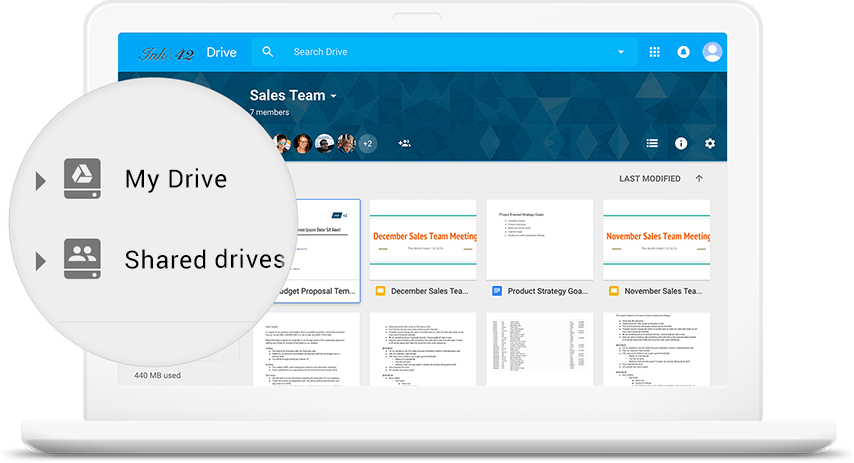
Technical controls are only effective when employees actually understand how to use them. Google Drive training can help teams understand the difference between viewer, commenter and editor permissions, when information is being shared externally and whether a file should be stored in My Drive or a Shared Drive. Training can also establish consistent processes for:
- Organising business files
- Sharing information with clients
- Handling confidential documents
- Reviewing access permissions
- Managing Shared Drives
- Responding to suspicious sharing requests
- Following employee onboarding and offboarding procedures
Without Google Drive training and clear policies in place, employees can develop their own ways of organising and sharing information. This can lead to duplicated files, inconsistent permissions and uncertainty about who owns important documents. Training should really be viewed as part of Google Drive security rather than simply a productivity exercise.
Common Google Drive Security Myths
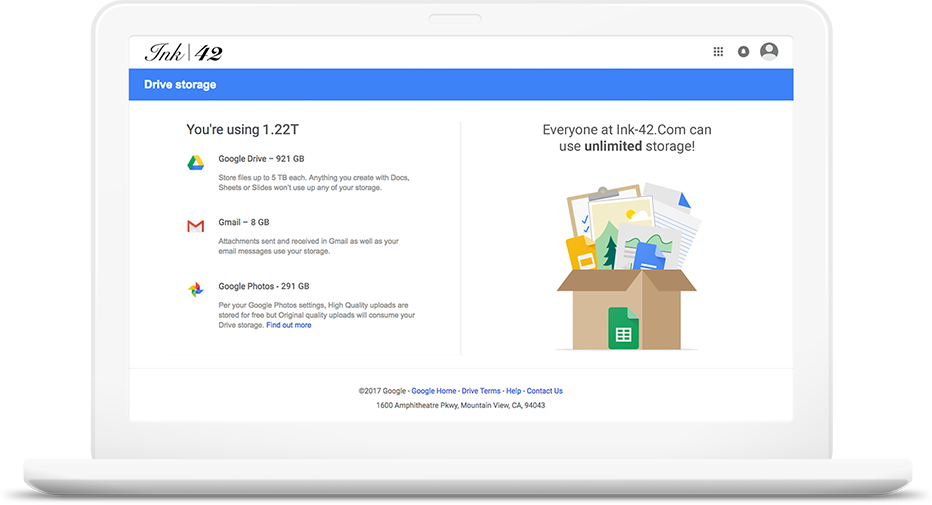
Myth 1: The Cloud Is Less Secure Than an On-Premise Server
The idea that your data is less secure in the cloud than on a physical server is less of a concern than it used to be. This is because people have now become more familiar with the cloud for both business and personal data storage.
Cloud services such as Google Workspace benefit from continuous security updates and extensive infrastructure. However, neither cloud storage or an on-premises server is automatically secure. This depends on how the system is maintained, configured and used. For many, Google Workspace can provide access to security controls and monitoring capabilities that would be difficult to reproduce independently.
Google has almost 1,000 security engineers who are solely focused on keeping data safe and removing possible threats. This means it would be extremely difficult for even a large organisation to rival this level of security. Therefore, Google Drive is one of the safest options for your data. Essentially, with Google, you’re outsourcing the security of your data. This is the exact same way you outsource the security of your money to a bank.
Myth 2: Anyone at Google Can Access My Data
Another common myth is that Google employees can read emails, documents and data to enable advertising. Whereas, Google Workspace customer data remains the customer’s data. Google provides contractual commitments, privacy controls, and compliance resources explaining how information is handled. However, organisations still need to understand their own responsibilities.
Using Google Workspace doesn’t automatically make a business compliant with every regulation. Compliance depends on factors such as the Workspace plan, configuration, internal policies and how employees handle information.
Myth 3: Google Drive Can Easily Be Hacked
This myth is both true and false; the answer is it's up to YOU!
Google gives you the information and tools you need to ensure the highest level of security for your Google Drive account. However, it’s up to you to implement these security controls to keep your accounts secure. Reused passwords, phishing attacks, unsafe devices and incorrect sharing permissions can still put information at risk.
The best protection comes from combining Google’s built-in security with 2-step verification, controlled access, secure devices, regular reviews and ongoing employee training.
So, Is Google Drive Safe for Businesses?
To bust the myth: Is Google Drive secure? It’s very safe, but it can be made even more secure by using the right tools to keep your business’s data protected.
Google Drive offers a wide range of security controls, and following best practices can provide a secure yet practical environment for storing, sharing and collaborating on company information. However, security shouldn’t be treated as a one-off setting and taking a more proactive approach is the best way to keep your Google Drive secure.
At Damson Cloud, we help organisations improve how they configure, manage and use Google Workspace. Whether you need an initial Google Workspace security review, practical Google Drive training or ongoing support, our team can help you create a secure working environment without making daily tasks unnecessarily difficult.
Get in touch with Damson Cloud to discuss how you can improve your Google Drive security.